




Table of Contents
- Table of Contents
- Introduction
- Contributing
- Issues
- Installation
- Quick Start
- Configuration
- Plugins
- Themes
- Maintenance
- Development
- References
Introduction
Dockerfile to build a Redmine container image.
Version
Current Version: sameersbn/redmine:5.1.3
P.S.: If your installation depends on various third party plugins, please stick with 2.6.xx series to avoid breakage.
Contributing
If you find this image useful here's how you can help:
- Send a Pull Request with your awesome new features and bug fixes
- Help new users with Issues they may encounter
- Support the development of this image with a donation
Issues
Docker is a relatively new project and is active being developed and tested by a thriving community of developers and testers and every release of docker features many enhancements and bugfixes.
Given the nature of the development and release cycle it is very important that you have the latest version of docker installed because any issue that you encounter might have already been fixed with a newer docker release.
Install the most recent version of the Docker Engine for your platform using the official Docker releases, which can also be installed using:
wget -qO- https://get.docker.com/ | sh
Fedora and RHEL/CentOS users should try disabling selinux with setenforce 0 and check if resolves the issue. If it does than there is not much that I can help you with. You can either stick with selinux disabled (not recommended by redhat) or switch to using ubuntu.
If using the latest docker version and/or disabling selinux does not fix the issue then please file a issue request on the issues page.
In your issue report please make sure you provide the following information:
- The host distribution and release version.
- Output of the
docker versioncommand. - Output of the
docker infocommand. - The
docker runcommand you used to run the image (mask out the sensitive bits).
Installation
Automated builds of the image are available on Dockerhub and is the recommended method of installation.
Note: Builds are also available on Quay.io
docker pull sameersbn/redmine:latest
Since version 2.4.2, the image builds are being tagged. You can now pull a particular version of redmine by specifying the version number. For example,
docker pull sameersbn/redmine:5.1.3
Alternately you can build the image yourself.
docker build -t sameersbn/redmine github.com/sameersbn/docker-redmine
Quick Start
The quickest way to get started is using docker compose.
wget https://raw.githubusercontent.com/sameersbn/docker-redmine/master/docker-compose.yml
docker compose up
Alternately, you can manually launch the redmine container and the supporting postgresql container by following this two step guide.
Step 1. Launch a postgresql container
docker run --name=postgresql-redmine -d \
  --env='DB_NAME=redmine_production' \
  --env='DB_USER=redmine' --env='DB_PASS=password' \
  --volume=/srv/docker/redmine/postgresql:/var/lib/postgresql \
  sameersbn/postgresql:14-20230628
Step 2. Launch the redmine container
docker run --name=redmine -d \
  --link=postgresql-redmine:postgresql --publish=10083:80 \
  --env='REDMINE_PORT=10083' \
  --volume=/srv/docker/redmine/redmine:/home/redmine/data \
  --volume=/srv/docker/redmine/redmine-logs:/var/log/redmine/ \
  sameersbn/redmine:5.1.3
NOTE: Please allow a minute or two for the Redmine application to start.
Point your browser to http://localhost:10083 and login using the default username and password:
- username: admin
- password: admin
Make sure you visit the Administration link and Load the default configuration before creating any projects.
You now have the Redmine application up and ready for testing. If you want to use this image in production the please read on.
The rest of the document will use the docker command line. You can quite simply adapt your configuration into a docker-compose.yml file if you wish to do so.
Configuration
Data Store
For the file storage we need to mount a volume at the following location.
/home/redmine/data/var/log/redminefor server logs
NOTE
Existing users need to move the existing files directory inside
/srv/docker/redmine/redmine/.mkdir -p /srv/docker/redmine/redmine mv /opt/redmine/files /srv/docker/redmine/redmine
SELinux users are also required to change the security context of the mount point so that it plays nicely with selinux.
mkdir -p /srv/docker/redmine/redmine
sudo chcon -Rt svirt_sandbox_file_t /srv/docker/redmine/redmine
Volumes can be mounted in docker by specifying the '-v' option in the docker run command.
docker run --name=redmine -it --rm \
  --volume=/srv/docker/redmine/redmine:/home/redmine/data \
  --volume=/srv/docker/redmine/redmine-logs:/var/log/redmine/ \
  sameersbn/redmine:5.1.3
Database
Redmine uses a database backend to store its data.
MySQL
Internal MySQL Server
The internal mysql server has been removed from the image. Please use a linked mysql or postgresql container instead or connect with an external mysql or postgresql server.
If you have been using the internal mysql server follow these instructions to migrate to a linked mysql container:
Assuming that your mysql data is available at /srv/docker/redmine/mysql
docker run --name=mysql-redmine -d \
  --volume=/srv/docker/redmine/mysql:/var/lib/mysql \
  sameersbn/mysql:5.7.22-1
This will start a mysql container with your existing mysql data. Now login to the mysql container and create a user for the existing redmine_production database.
All you need to do now is link this mysql container to the redmine container using the --link=mysql-redmine:mysql option and provide the DB_NAME, DB_USER and DB_PASS parameters.
Refer to Linking to MySQL Container for more information.
External MySQL Server
The image can be configured to use an external MySQL database instead of starting a MySQL server internally. The database configuration should be specified using environment variables while starting the Redmine image.
Before you start the Redmine image create user and database for redmine.
mysql -uroot -p
CREATE USER 'redmine'@'%.%.%.%' IDENTIFIED BY 'password';
CREATE DATABASE IF NOT EXISTS `redmine_production` DEFAULT CHARACTER SET `utf8` COLLATE `utf8_unicode_ci`;
GRANT SELECT, LOCK TABLES, INSERT, UPDATE, DELETE, CREATE, DROP, INDEX, ALTER ON `redmine_production`.* TO 'redmine'@'%.%.%.%';
We are now ready to start the redmine application.
docker run --name=redmine -it --rm \
  --env='DB_ADAPTER=mysql2' \
  --env='DB_HOST=192.168.1.100' --env='DB_NAME=redmine_production' \
  --env='DB_USER=redmine' --env='DB_PASS=password' \
  --volume=/srv/docker/redmine/redmine:/home/redmine/data \
  --volume=/srv/docker/redmine/redmine-logs:/var/log/redmine/ \
  sameersbn/redmine:5.1.3
This will initialize the redmine database and after a couple of minutes your redmine instance should be ready to use.
Linking to MySQL Container
You can link this image with a mysql container for the database requirements. The alias of the mysql server container should be set to mysql while linking with the redmine image.
If a mysql container is linked, only the DB_ADAPTER, DB_HOST and DB_PORT settings are automatically retrieved using the linkage. You may still need to set other database connection parameters such as the DB_NAME, DB_USER, DB_PASS and so on.
To illustrate linking with a mysql container, we will use the sameersbn/mysql image. When using docker-mysql in production you should mount a volume for the mysql data store. Please refer the README of docker-mysql for details.
First, lets pull the mysql image from the docker index.
docker pull sameersbn/mysql:5.7.22-1
For data persistence lets create a store for the mysql and start the container.
SELinux users are also required to change the security context of the mount point so that it plays nicely with selinux.
mkdir -p /srv/docker/redmine/mysql
sudo chcon -Rt svirt_sandbox_file_t /srv/docker/redmine/mysql
The run command looks like this.
docker run --name=mysql-redmine -d \
  --env='DB_NAME=redmine_production' \
  --env='DB_USER=redmine' --env='DB_PASS=password' \
  --volume=/srv/docker/redmine/mysql:/var/lib/mysql \
  sameersbn/mysql:5.7.22-1
The above command will create a database named redmine_production and also create a user named redmine with the password password with full/remote access to the redmine_production database.
We are now ready to start the redmine application.
docker run --name=redmine -it --rm --link=mysql-redmine:mysql \
  --volume=/srv/docker/redmine/redmine:/home/redmine/data \
  --volume=/srv/docker/redmine/redmine-logs:/var/log/redmine/ \
  sameersbn/redmine:5.1.3
Here the image will also automatically fetch the DB_NAME, DB_USER and DB_PASS variables from the mysql container as they are specified in the docker run command for the mysql container. This is made possible using the magic of docker links and works with the following images:
PostgreSQL
External PostgreSQL Server
The image also supports using an external PostgreSQL Server. This is also controlled via environment variables.
CREATE ROLE redmine with LOGIN CREATEDB PASSWORD 'password';
CREATE DATABASE redmine_production;
GRANT ALL PRIVILEGES ON DATABASE redmine_production to redmine;
We are now ready to start the redmine application.
docker run --name=redmine -it --rm \
  --env='DB_ADAPTER=postgresql' \
  --env='DB_HOST=192.168.1.100' --env='DB_NAME=redmine_production' \
  --env='DB_USER=redmine' --env='DB_PASS=password' \
  --volume=/srv/docker/redmine/redmine:/home/redmine/data \
  --volume=/srv/docker/redmine/redmine-logs:/var/log/redmine/ \
  sameersbn/redmine:5.1.3
This will initialize the redmine database and after a couple of minutes your redmine instance should be ready to use.
Linking to PostgreSQL Container
You can link this image with a postgresql container for the database requirements. The alias of the postgresql server container should be set to postgresql while linking with the redmine image.
If a postgresql container is linked, only the DB_ADAPTER, DB_HOST and DB_PORT settings are automatically retrieved using the linkage. You may still need to set other database connection parameters such as the DB_NAME, DB_USER, DB_PASS and so on.
To illustrate linking with a postgresql container, we will use the sameersbn/postgresql image. When using postgresql image in production you should mount a volume for the postgresql data store. Please refer the README of docker-postgresql for details.
First, lets pull the postgresql image from the docker index.
docker pull sameersbn/postgresql:14-20230628
For data persistence lets create a store for the postgresql and start the container.
SELinux users are also required to change the security context of the mount point so that it plays nicely with selinux.
mkdir -p /srv/docker/redmine/postgresql
sudo chcon -Rt svirt_sandbox_file_t /srv/docker/redmine/postgresql
The run command looks like this.
docker run --name=postgresql-redmine -d \
  --env='DB_NAME=redmine_production' \
  --env='DB_USER=redmine' --env='DB_PASS=password' \
  --volume=/srv/docker/redmine/postgresql:/var/lib/postgresql \
  sameersbn/postgresql:14-20230628
The above command will create a database named redmine_production and also create a user named redmine with the password password with access to the redmine_production database.
We are now ready to start the redmine application.
docker run --name=redmine -it --rm --link=postgresql-redmine:postgresql \
  --volume=/srv/docker/redmine/redmine:/home/redmine/data \
  --volume=/srv/docker/redmine/redmine-logs:/var/log/redmine/ \
  sameersbn/redmine:5.1.3
Here the image will also automatically fetch the DB_NAME, DB_USER and DB_PASS variables from the postgresql container as they are specified in the docker run command for the postgresql container. This is made possible using the magic of docker links and works with the following images:
编辑推荐精选


音述AI
全球首个AI音乐社区
音述AI是全球首个AI音乐社区,致力让每个人都能用音乐表达自我。音述AI提供零门槛AI创作工具,独创GETI法则帮助用户精准定义音乐风格,AI润色功能支持自动优化作品质感。音述AI支持交流讨论、二次创作与价值变现。针对中文用户的语言习惯与文化背景进行专门优化,支持国风融合、C-pop等本土音乐标签,让技术更好地承载人文表达。

QoderWork
阿里Qoder团队推出的桌面端AI智能体
QoderWork 是阿里推出的本地优先桌面 AI 智能体,适配 macOS14+/Windows10+,以自然语言交互实现文件管理、数据分析、AI 视觉生成、浏览器自动化等办公任务,自主拆解执行复杂工作流,数据本地运行零上传,技能市场可无限扩展,是高效的 Agentic 生产力办公助手。


lynote.ai
一站式搞定所有学习需求
不再被海量信息淹没,开始真正理解知识。Lynote 可摘要 YouTube 视频、PDF、文章等内容。即时创建笔记,检测 AI 内容并下载资料,将您的学习效率提升 10 倍。


AniShort
为AI短剧协作而生
专为AI短剧协作而生的AniShort正式发布,深度重构AI短剧全流程生产模式,整合创意策划、制作执行、实时协作、在线审片、资产复用等全链路功能,独创无限画布、双轨并行工业化工作流与Ani智能体助手,集成多款主流AI大模型,破解素材零散、版本混乱、沟通低效等行业痛点,助力3人团队效率提升800%,打造标准化、可追溯的AI短剧量产体系,是AI短剧团队协同创作、提升制作效率的核心工具。


seedancetwo2.0
能听懂你表达的视频模型
Seedance two是基于seedance2.0的中国大模型,支持图像、视频、音频、文本四种模态输入,表达方式更丰富,生成也更可控。
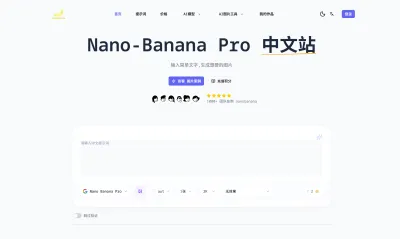

nano-banana纳米香蕉中文站
国内直接访问,限时3折
输入简单文字,生成想要的图片,纳米香蕉中文站基于 Google 模型的 AI 图片生成网站,支持文字生图、图生图。官网价格限时3折活动
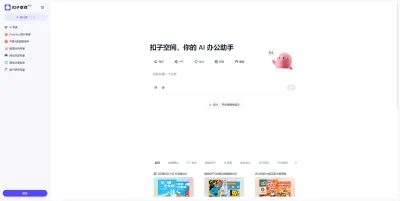

扣子-AI办公
职场AI,就用扣子
AI办公助手,复杂任务高效处理。办公效率低?扣子空间AI助手支持播客生成、PPT制作、网页开发及报告写作,覆盖科研、商业、舆情等领域的专家Agent 7x24小时响应,生活工作无缝切换,提升50%效率!


堆友
多风格AI绘画神器
堆友平台由阿里巴巴设计团队创建,作为一款AI驱动的设计工具,专为设计师提供一站式增长服务。功能覆盖海量3D素材、AI绘画、实时渲染以及专业抠图,显著提升设计品质和效率。平台不仅提供工具,还是一个促进创意交流和个人发展的空间,界面友好,适合所有级别的设计师和创意工作者。


码上飞
零代码AI应用开发平台
零代码AI应用开发平台,用户只需一句话简单描述需求,AI能自动生成小程序、APP或H5网页应用,无需编写代码。
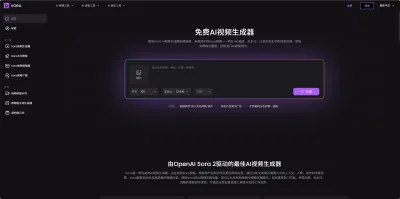

Vora
免费创建高清无水印Sora视频
Vora是一个免费创建高清无水印Sora视频的AI工具

推荐工具精选


AI云服务特惠
懂AI专属折扣关注微信公众号
最新AI工具、AI资讯
独家AI资源、AI项目落地

微信扫一扫关注公众号