


AppIntro





AppIntro is an Android Library that helps you build a cool carousel intro for your App. AppIntro has support for requesting permissions and helps you create a great onboarding experience in just a couple of minutes.
<p align="center"> <img src="assets/logo/logo-cropped.png" alt="appintro icon" width="60%"/> <img src="assets/appintro.gif" alt="appintro sample" width="30%"/> </p>- Getting Started <g-emoji class="g-emoji" alias="footprints" fallback-src="https://github.githubassets.com/images/icons/emoji/unicode/1f463.png">👣</g-emoji>
- Migrating <g-emoji class="g-emoji" alias="car" fallback-src="https://github.githubassets.com/images/icons/emoji/unicode/1f697.png">🚗</g-emoji>
- Features <g-emoji class="g-emoji" alias="toolbox" fallback-src="https://github.githubassets.com/images/icons/emoji/unicode/1f9f0.png">🧰</g-emoji>
- Creating Slides <g-emoji class="g-emoji" alias="woman_artist" fallback-src="https://github.githubassets.com/images/icons/emoji/unicode/1f469-1f3a8.png">👩🎨</g-emoji>
- Configure <g-emoji class="g-emoji" alias="art" fallback-src="https://github.githubassets.com/images/icons/emoji/unicode/1f3a8.png">🎨</g-emoji>
- Permission <g-emoji class="g-emoji" alias="lock" fallback-src="https://github.githubassets.com/images/icons/emoji/unicode/1f512.png">🔒</g-emoji>
- Example App <g-emoji class="g-emoji" alias="bulb" fallback-src="https://github.githubassets.com/images/icons/emoji/unicode/1f4a1.png">💡</g-emoji>
- Translating <g-emoji class="g-emoji" alias="earth_africa" fallback-src="https://github.githubassets.com/images/icons/emoji/unicode/1f30d.png">🌍</g-emoji>
- Snapshots <g-emoji class="g-emoji" alias="package" fallback-src="https://github.githubassets.com/images/icons/emoji/unicode/1f4e6.png">📦</g-emoji>
- Contributing <g-emoji class="g-emoji" alias="handshake" fallback-src="https://github.githubassets.com/images/icons/emoji/unicode/1f91d.png">🤝</g-emoji>
- Acknowledgments <g-emoji class="g-emoji" alias="cherry_blossom" fallback-src="https://github.githubassets.com/images/icons/emoji/unicode/1f338.png">🌸</g-emoji>
- License <g-emoji class="g-emoji" alias="page_facing_up" fallback-src="https://github.githubassets.com/images/icons/emoji/unicode/1f4c4.png">📄</g-emoji>
- Apps using AppIntro <g-emoji class="g-emoji" alias="iphone" fallback-src="https://github.githubassets.com/images/icons/emoji/unicode/1f4f1.png">📱</g-emoji>
Getting Started 👣
AppIntro is distributed through JitPack.
Adding a dependency
To use it you need to add the following gradle dependency to your build.gradle file of the module where you want to use AppIntro (NOT the root file).
repositories {
    maven { url "https://jitpack.io" }
}
dependencies {
    // AndroidX Capable version
    implementation 'com.github.AppIntro:AppIntro:6.3.1'

    // *** OR ***

    // Latest version compatible with the old Support Library
    implementation 'com.github.AppIntro:AppIntro:4.2.3'
}
Please note that since AppIntro 5.x, the library supports Android X. If you haven't migrated yet, you probably want to use a previous version of the library that uses the old Support Library packages (or try Jetifier Reverse mode).
Basic usage
To use AppIntro, you simply have to create a new Activity that extends AppIntro like the following:
class MyCustomAppIntro : AppIntro() {
    override fun onCreate(savedInstanceState: Bundle?) {
        super.onCreate(savedInstanceState)
        // Make sure you don't call setContentView!

        // Call addSlide passing your Fragments.
        // You can use AppIntroFragment to use a pre-built fragment
        addSlide(AppIntroFragment.createInstance(
                title = "Welcome...",
                description = "This is the first slide of the example"
        ))
        addSlide(AppIntroFragment.createInstance(
                title = "...Let's get started!",
                description = "This is the last slide, I won't annoy you more :)"
        ))
    }

    override fun onSkipPressed(currentFragment: Fragment?) {
        super.onSkipPressed(currentFragment)
        // Decide what to do when the user clicks on "Skip"
        finish()
    }

    override fun onDonePressed(currentFragment: Fragment?) {
        super.onDonePressed(currentFragment)
        // Decide what to do when the user clicks on "Done"
        finish()
    }
}
Please note that you must NOT call setContentView. The AppIntro superclass is taking care of it for you.
Also confirm that you're overriding onCreate with a single parameter (Bundle) and you're not using another override (like onCreate(Bundle, PersistableBundle)) instead.
Finally, declare the activity in your Manifest like so:
<activity android:name="com.example.MyCustomAppIntro"
    android:label="My Custom AppIntro" />
We suggest to don't declare MyCustomAppIntro as your first Activity unless you want the intro to launch every time your app starts. Ideally you should show the AppIntro activity only once to the user, and you should hide it once completed (you can use a flag in the SharedPreferences).
Java users
You can find many examples in java language in the examples directory
Migrating 🚗
If you're migrating from AppIntro v5.x to v6.x, please expect multiple breaking changes. You can find documentation on how to update your code on this other migration guide.
Features 🧰
Don't forget to check the changelog to have a look at all the changes in the latest version of AppIntro.
- API >= 14 compatible.
- 100% Kotlin Library.
- AndroidX Compatible.
- Support for runtime permissions.
- Dependent only on AndroidX AppCompat/Annotations, ConstraintLayout and Kotlin JDK.
- Full RTL support.
Creating Slides 👩🎨
The entry point to add a new slide is the addSlide(fragment: Fragment) function on the AppIntro class.
You can easily use it to add a new Fragment to the carousel.
The library comes with several util classes to help you create your Slide with just a couple lines:
AppIntroFragment
You can use the AppIntroFragment if you just want to customize title, description, image and colors.
That's the suggested approach if you want to create a quick intro:
addSlide(AppIntroFragment.createInstance(
    title = "The title of your slide",
    description = "A description that will be shown on the bottom",
    imageDrawable = R.drawable.the_central_icon,
    backgroundDrawable = R.drawable.the_background_image,
    titleColorRes = R.color.yellow,
    descriptionColorRes = R.color.red,
    backgroundColorRes = R.color.blue,
    titleTypefaceFontRes = R.font.opensans_regular,
    descriptionTypefaceFontRes = R.font.opensans_regular,
))
All the parameters are optional, so you're free to customize your slide as you wish.
If you need to programmatically create several slides you can also use the SliderPage class.
This class can be passed to AppIntroFragment.createInstance(sliderPage: SliderPage) that will create
a new slide starting from that instance.
AppIntroCustomLayoutFragment
If you need further control on the customization of your slide, you can use the AppIntroCustomLayoutFragment.
This will allow you pass your custom Layout Resource file:
AppIntroCustomLayoutFragment.newInstance(R.layout.intro_custom_layout1)
This allows you to achieve complex layout and include your custom logic in the Intro (see also Slide Policy):
<p align="center"> <img src="assets/custom-layout.png" alt="appintro custom-layout" width="30%"/> </p>Configure 🎨
AppIntro offers several configuration option to help you customize your onboarding experience.
Slide Transformer
AppIntro comes with a set of Slide Transformer that you can use out of the box to animate your Slide transition.
| Slide Transformers | Slide Transformers |
|---|---|
| Fade<br/><img src="assets/fade.gif" alt="fade" width="50%"/> | Zoom<br/><img src="assets/zoom.gif" alt="zoom" width="50%"/> |
| Flow<br/><img src="assets/flow.gif" alt="flow" width="50%"/> | Slide Over<br/><img src="assets/slideover.gif" alt="slideover" width="50%"/> |
| Depth<br/><img src="assets/depth.gif" alt="depth" width="50%"/> | Parallax<br/><img src="assets/parallax.gif" alt="parallax" width="50%"/> |
You can simply call setTransformer() and pass one of the subclass of the sealed class AppIntroPageTransformerType:
setTransformer(AppIntroPageTransformerType.Fade)
setTransformer(AppIntroPageTransformerType.Zoom)
setTransformer(AppIntroPageTransformerType.Flow)
setTransformer(AppIntroPageTransformerType.SlideOver)
setTransformer(AppIntroPageTransformerType.Depth)

// You can customize your parallax parameters in the constructors.
setTransformer(AppIntroPageTransformerType.Parallax(
                titleParallaxFactor = 1.0,
                imageParallaxFactor = -1.0,
                descriptionParallaxFactor = 2.0
))
Custom Slide Transformer
You can also provide your custom Slide Transformer (implementing the ViewPager.PageTransformer interface) with:
setCustomTransformer(ViewPager.PageTransformer)
Color Transition
<p align="center"> <img src="assets/color-transition.gif" alt="appintro sample" width="30%"/> </p>AppIntro offers the possibility to animate the color transition between two slides background. This feature is disabled by default, and you need to enable it on your AppIntro with:
isColorTransitionsEnabled = true
Once you enable it, the color will be animated between slides with a gradient.
Make sure you provide a backgroundColor parameter in your slides.
If you're providing custom Fragments, you can let them support the color transition by implementing
the SlideBackgroundColorHolder interface.
Multiple Windows Layout
AppIntro is shipped with two top-level layouts that you can use.
The default layout (AppIntro) has textual buttons, while the alternative
layout has buttons with icons.
To change the Window layout, you can simply change your superclass to AppIntro2.
The methods to add and customize the AppIntro are unchanged.
class MyCustomAppIntro : AppIntro2() {
    // Same code as displayed in the `Basic Usage` section of this README
}
| Page | AppIntro | AppIntro2 |
|---|---|---|
| standard page | <img src="assets/layout1-start.png" alt="layout1-start" width="50%"/> | <img src="assets/layout2-start.png" alt="layout2-start" width="50%"/> |
| last page | <img src="assets/layout1-end.png" alt="layout1-end" width="50%"/> | <img src="assets/layout2-end.png" alt="layout2-end" width="50%"/> |
Indicators
AppIntro supports two indicators out of the box to show the progress of the Intro experience to the user:
DotIndicatorControllerrepresented with a list of Dot (the default)ProgressIndicatorControllerrepresented with a progress bar.
DotIndicator | ProgressIndicator |
|---|---|
 |  |
Moreover, you can supply your own indicator by providing an implementation of the IndicatorController interface.
You can customize the indicator with the following API on the AppIntro class:
// Toggle Indicator Visibility
isIndicatorEnabled = true

// Change Indicator Color
setIndicatorColor(
    selectedIndicatorColor = getColor(R.color.red),
    unselectedIndicatorColor = getColor(R.color.blue)
)

// Switch from Dotted Indicator to Progress Indicator
setProgressIndicator()

// Supply your custom `IndicatorController` implementation
indicatorController = MyCustomIndicator(/* initialize me */)
If you don't specify any customization, a DotIndicatorController will be shown.
Vibration
AppIntro supports providing haptic vibration feedback on button clicks. Please note that you need to specify the Vibration permission in your app Manifest (the library is not doing it). If you forget to specify the permission, the app will experience a crash.
<uses-permission android:name="android.permission.VIBRATE" />
You can enable and customize the vibration with:
// Enable vibration and set duration in ms
isVibrate = true
vibrateDuration = 50L
Wizard Mode
<p align="center"> <img src="assets/wizard1.png" alt="appintro wizard1" width="30%"/> <img src="assets/wizard2.png" alt="appintro wizard2" width="30%"/> </p>AppIntro supports a Wizard mode where the Skip button will be replaced with the back arrow. This comes handy if you're presenting a Wizard to your users with a set of steps they need to do, and they might frequently go back and forth.
You can enable it with:
isWizardMode = true
Immersive Mode
<p align="center"> <img src="assets/immersive1.png" alt="appintro immersive1" width="30%"/> <img src="assets/immersive2.png" alt="appintro immersive2" width="30%"/> </p>If you want to display your Intro with a fullscreen experience, you can enable the Immersive mode. This will hide both the Status Bar and the Navigation Bar and the user will have to scroll from the top of the screen to show them again.
This allows you to have more space for your Intro content and graphics.
You can enable it with:
setImmersiveMode()
System Back button
You can lock the System Back button if you don't want your user to go back from intro. This could be useful if you need to request permission and the Intro experience is not optional.
If this is the case, please set to true the following flag:
isSystemBackButtonLocked = true
System UI (Status Bar and Navigation Bar)
<p align="center"> <img src="assets/system-ui.png" alt="appintro编辑推荐精选


音述AI
全球首个AI音乐社区
音述AI是全球首个AI音乐社区,致力让每个人都能用音乐表达自我。音述AI提供零门槛AI创作工具,独创GETI法则帮助用户精准定义音乐风格,AI润色功能支持自动优化作品质感。音述AI支持交流讨论、二次创作与价值变现。针对中文用户的语言习惯与文化背景进行专门优化,支持国风融合、C-pop等本土音乐标签,让技术更好地承载人文表达。


QoderWork
阿里Qoder团队推出的桌面端AI智能体
QoderWork 是阿里推出的本地优先桌面 AI 智能体,适配 macOS14+/Windows10+,以自然语言交互实现文件管理、数据分析、AI 视觉生成、浏览器自动化等办公任务,自主拆解执行复杂工作流,数据本地运行零上传,技能市场可无限扩展,是高效的 Agentic 生产力办公助手。


lynote.ai
一站式搞定所有学习需求
不再被海量信息淹没,开始真正理解知识。Lynote 可摘要 YouTube 视频、PDF、文章等内容。即时创建笔记,检测 AI 内容并下载资料,将您的学习效率提升 10 倍。


AniShort
为AI短剧协作而生
专为AI短剧协作而生的AniShort正式发布,深度重构AI短剧全流程生产模式,整合创意策划、制作执行、实时协作、在线审片、资产复用等全链路功能,独创无限画布、双轨并行工业化工作流与Ani智能体助手,集成多款主流AI大模型,破解素材零散、版本混乱、沟通低效等行业痛点,助力3人团队效率提升800%,打造标准化、可追溯的AI短剧量产体系,是AI短剧团队协同创作、提升制作效率的核心工具。


seedancetwo2.0
能听懂你表达的视频模型
Seedance two是基于seedance2.0的中国大模型,支持图像、视频、音频、文本四种模态输入,表达方式更丰富,生成也更可控。


nano-banana纳米香蕉中文站
国内直接访问,限时3折
输入简单文字,生成想要的图片,纳米香蕉中文站基于 Google 模型的 AI 图片生成网站,支持文字生图、图生图。官网价格限时3折活动


扣子-AI办公
职场AI,就用扣子
AI办公助手,复杂任务高效处理。办公效率低?扣子空间AI助手支持播客生成、PPT制作、网页开发及报告写作,覆盖科研、商业、舆情等领域的专家Agent 7x24小时响应,生活工作无缝切换,提升50%效率!


堆友
多风格AI绘画神器
堆友平台由阿里巴巴设计团队创建,作为一款AI驱动的设计工具,专为设计师提供一站式增长服务。功能覆盖海量3D素材、AI绘画、实时渲染以及专业抠图,显著提升设计品质和效率。平台不仅提供工具,还是一个促进创意交流和个人发展的空间,界面友好,适合所有级别的设计师和创意工作者。


码上飞
零代码AI应用开发平台
零代码AI应用开发平台,用户只需一句话简单描述需求,AI能自动生成小程序、APP或H5网页应用,无需编写代码。
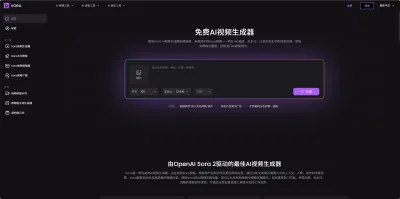

Vora
免费创建高清无水印Sora视频
Vora是一个免费创建高清无水印Sora视频的AI工具

推荐工具精选


AI云服务特惠
懂AI专属折扣关注微信公众号
最新AI工具、AI资讯
独家AI资源、AI项目落地

微信扫一扫关注公众号